Pixel art has become very popular among people of all ages. This art looks simple, creative, and nostalgic. It takes you back to memories just like old video games, retro cartoons, and classic computer graphics. The best thing about it is that you don’t need any special drawing skills, and you will get the best photo into pixel art. With the right tools and steps, you can easily turn your photo into pixel art.
This step-by-step guide helps you turn any picture into fun, stylish pixel art.
1. Choose the Right Photo
The first step is selecting the photo you want to turn into pixel art. Make sure to choose the right picture; if it’s too dark or blurry, it will affect the pixel art, and your image may not look clean.
Try choosing a photo that:
- Has a clear face
- With simple shapes
- In strong colors
- An object with a clear outline
If your picture has too many tiny details, they may get lost during the process. That’s why you should choose bold, straightforward photos to achieve better results.
2. Pick a Pixel Art Tool
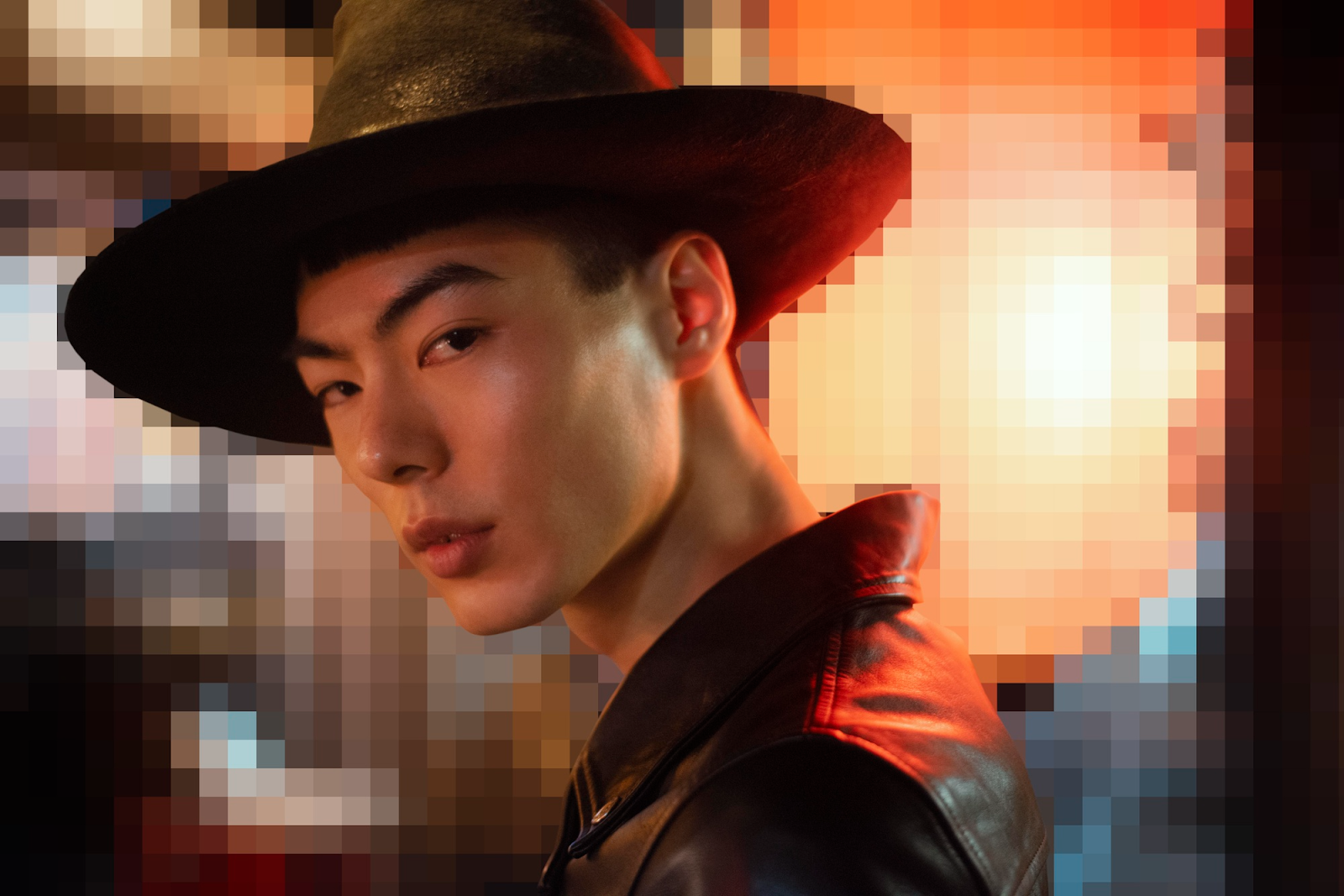
After photo selection, to turn your photo into pixel art, you need a tool that can reduce the image’s resolution and create a blocky, pixel-like effect. There are many tools available online. But one easy option for a beginner is a photo pixelator. This tool can quickly convert your image into pixel-style art without complicated settings. You just need to upload your picture, choose how pixelated you want it to look, and download the result.
3. Reduce the Image Resolution
Pixel art uses fewer pixels. When you lower the resolution, small details turn into blocky squares.
Most tools allow you to adjust settings such as pixel size, resolution, detail level, and colour count. Try experiments with different pixel sizes. If the pixels are too small, the image will look normal. At the same time, if they are too large, the picture may be difficult to understand. So balance is the key.
4. Adjust the Colors
After image resolution, it’s time to adjust the color. In pixel art, color options are limited. This gives it that classic 8-bit or 16-bit game look. After pixelating your image, you need to do these things:
- Reduce the color palette
- Choose bright and simple shades
- Enhance contrast for better outlines
This step makes your photo look clean, bold, and more authentic.
5. Add Outlines or Extra Details (Optional)
To enhance your photo, you can add extra details, such as black outlines around essential parts of the picture, like the face, hair, or clothing. This makes the image more attractive and gives a cartoon-like effect. Moreover, you can add small artistic touches such as shadows, highlights, extra shapes, and game-style effects. If you use a drawing app, you can edit individual pixels to make the final result even better.
6. Save and Share Your Pixel Art
Once you get the best pixel art photo, save it in high quality. PNG format is best because it preserves color sharpness. After saving, you can share the picture on social media, use it as a profile picture, and use it as stickers or posters.